More About Sessions
Help Index
The RacelogWeb Finish Collect App. This screen loads after you open your fleet file in RacelogWeb and then
click the "Collect App" button (see screenshot below). This is where you enter your Finish Times.
This app is integrated with RacelogWeb, but separate from RacelogWeb. RacelogWeb requires that
you be connected to the internet, and logged in to RacelogWeb. The App can be used even when disconnected from the internet.
Tech Note: The technical term for the app is "Progressive Web App". It is initiated from RacelogWeb, and is not required to be downloaded or installed from Apple's or Googles's App store. It will run Online or Offline on Windows, Mac, iPad and Android tablet. It can run on a phone but the screen is too small to be practicle.
The Times finish data you capture here will integrate into your Fleet File and can then be 'scored' in RacelogWeb
in the same manner as any Fleet File.
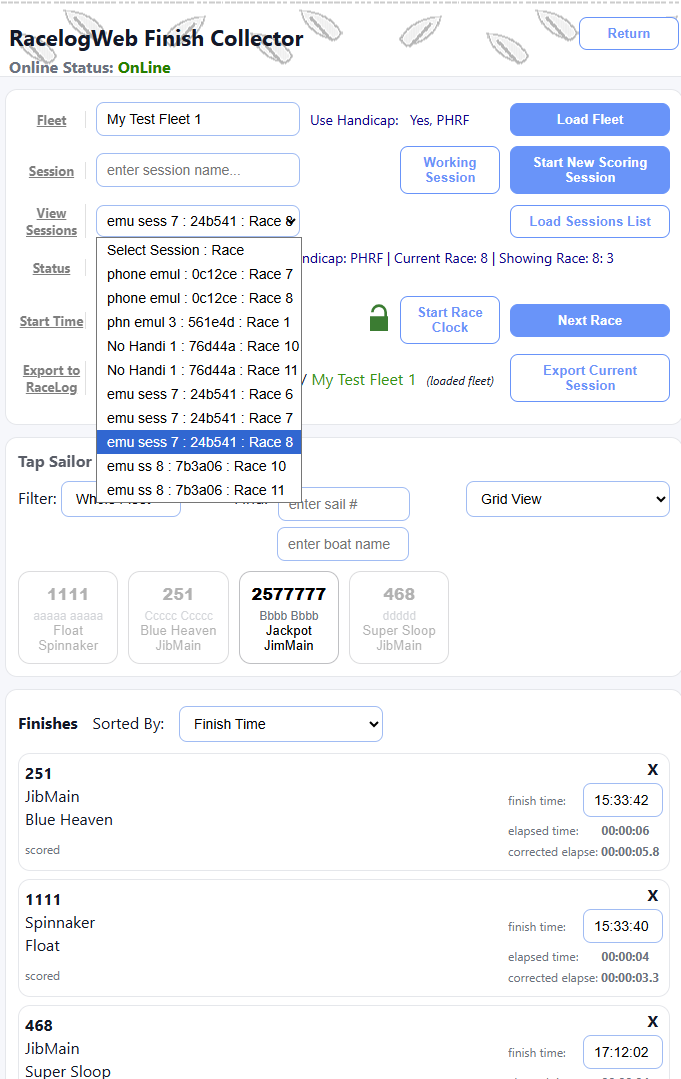
Collect App - with Dropdown showing previous Sessions:
Notes:
Finish times and Corrected times
...are calculated automatically when you click a finishing boat as it crosses the finish line. You can easily modifiy the times in the finish list in case the clicked time is not precise, Enter the new time in the input box, click outside the box or hit Enter key to recalculate the finish and corrected times instantly.
Fleet/Session/Race
Fleet: your RacelogWeb Fleet file which contains the sailor and handicap data, and any previously finished races you have recorded from previous race sessions.
Session: a day's scoring session for a Fleet. A session may contain one or more races. A Session is the collection of finishes for a Fleet you will Export to Racelogweb for creating Results reports.
Race: each race within a Session has its own Start Time and Finish Times.
View Sessions This dropdown allows you to select a previous Session to view. You can review the session, adjust Finish time and Export the session.
Green padlock (unlocked mode) clicking the Lock icon or Start Race Clock will lock and disable certain buttons including the Start Race Clock button to prevents user from accidentally click or tap during the Race
Red padlock (locked mode) a click will unlock the padlock and the disabled buttons
Start Race Clock at the start of the race. This will be the official start time for this race.
Clicking this button will lock the buttons which you don't want to accidentally click or touch during an active
Race. The Padlock icon will turn Red to indicated "Locked". To start the Next Race, click the padlock to unlock
the buttons, click Next Race button, then at the actual start click Start Race Clock, which will then relock the buttons.
Click the finishing boat as it crosses the finish line from the list of boats. You can choose
List View ( for larger fleets ) or Grid View. You can also "Search Sail #" to quickly find the
sail number of the finishing boat from a long list of boats. Its an incremental Search. Typing '2' will show all boats with sail numbers starting with '2'. As soon as you select the finishing boat, the whole list is quickly restored so you can find the next Finisher. A boat which has already Finished will be disabled to indicate its already scored. The list is sorted alphabetically by Sail Number which may also contain alpha characters.
